Last mod: 2026.02.18
Radxa Rock 4 SE – Armbian on NVMe
Introduction
Armbian is a lightweight Linux distribution designed specifically for ARM-based single-board computers. It is built on top of Debian and Ubuntu, providing a stable and optimized environment for embedded systems, IoT projects, and low-power servers. Armbian focuses on performance, security, and long-term maintainability, offering carefully tuned kernels and minimal, efficient system images. It is widely used by developers and enthusiasts who need a reliable operating system for ARM devices in both development and production environments.
Hardware
Radxa Rock 4SE - Can use a different version
M.2 Extension Board - Theoretically, it is possible to connect an NVMe drive without this adapter, but unfortunately only theoretically.
WD PC SN530 NVMe SSD - It could be a different NVMe drive
Power supply USB-C - Minimum 5V/3A
Heatsink for ROCK 4 - It is not required but recommended, as the Rock4 chipset tends to overheat
MicroSD card - Preferably with A1 or A2 speed ratings, only for installation purposes
Prepare image
wget https://github.com/armbian/imager/releases/download/v1.2.8/Armbian.Imager_1.2.8_amd64.AppImage
chmod +x Armbian.Imager_1.2.8_amd64.AppImage
Run Armbian disk imager:
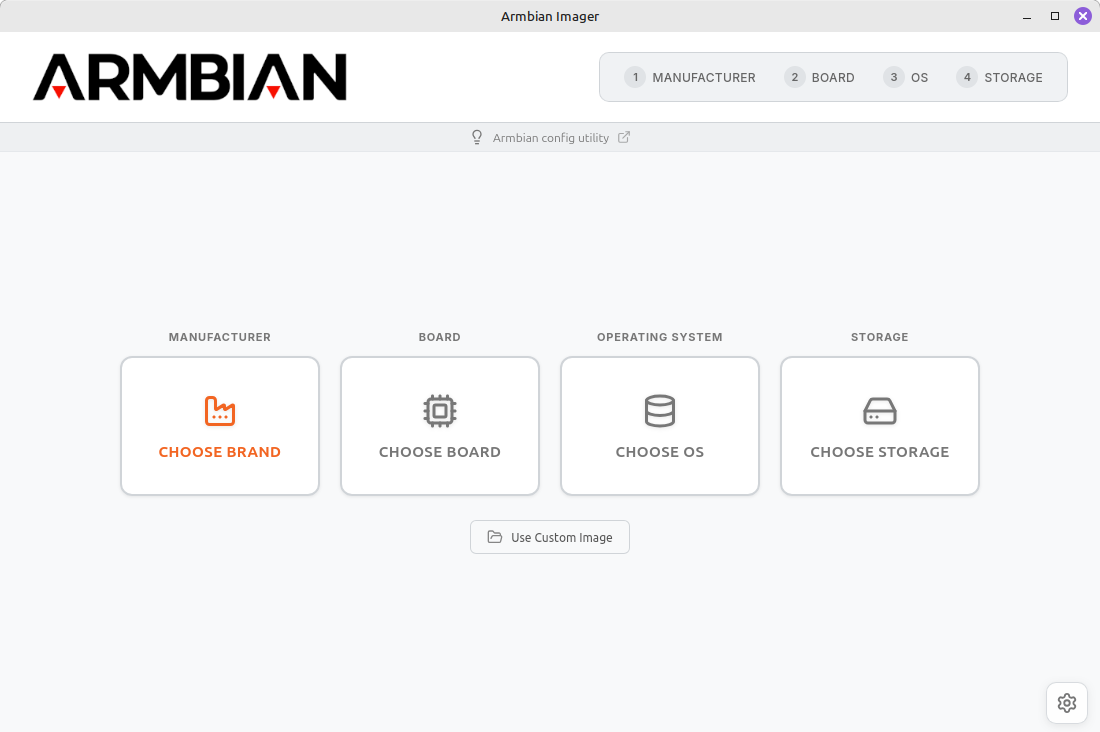
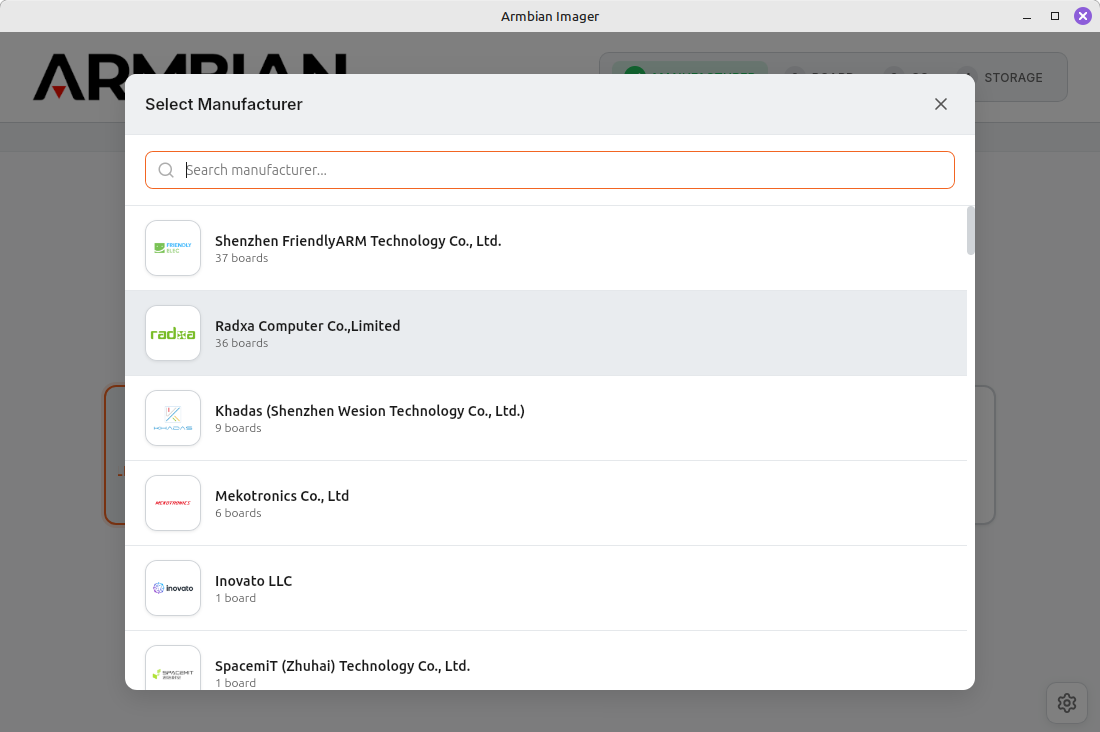
Select Manufacturer:
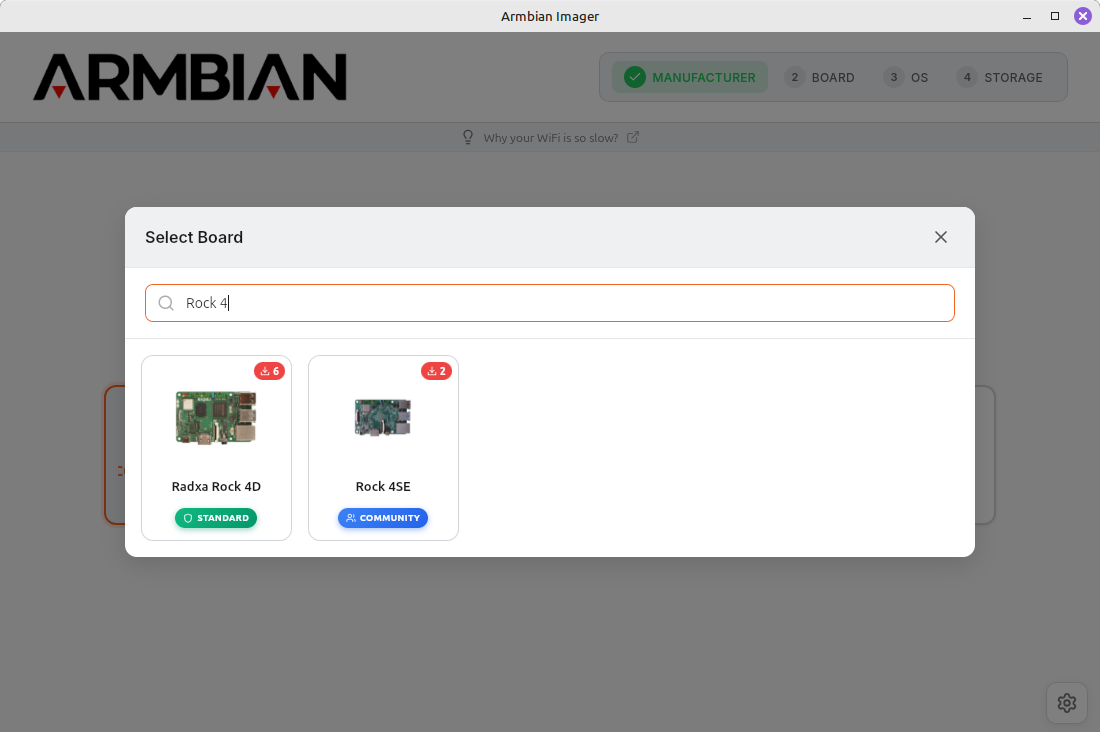
Select Borad:
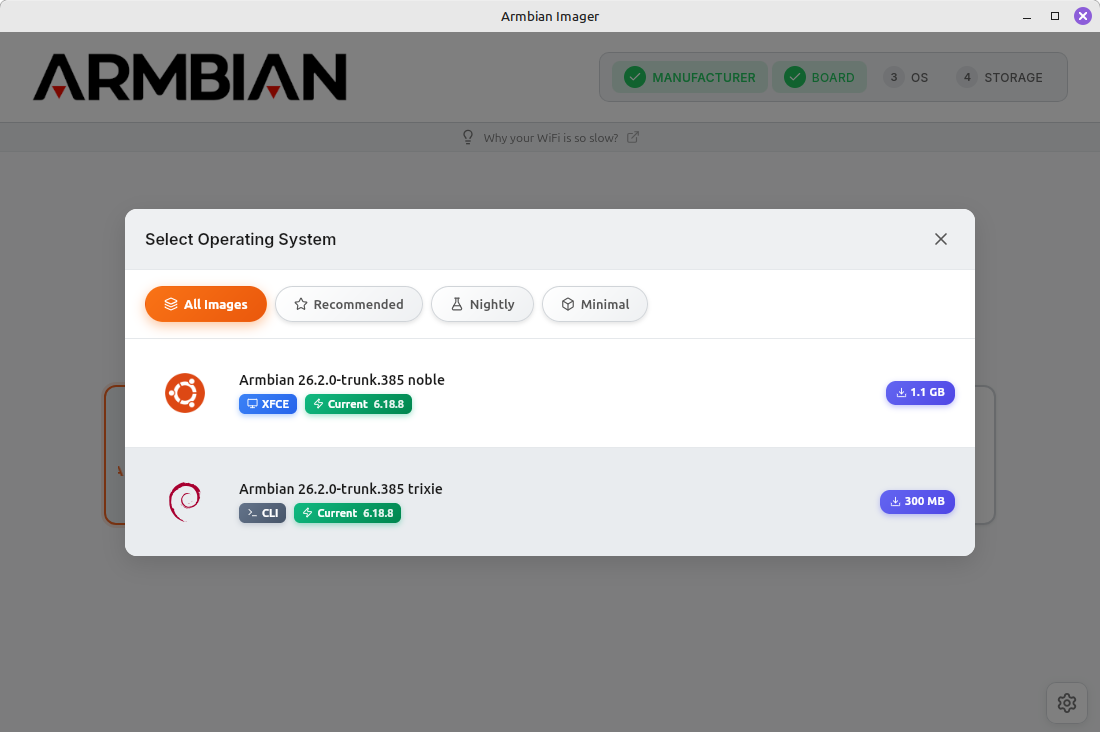
Select OS Armbian ...:
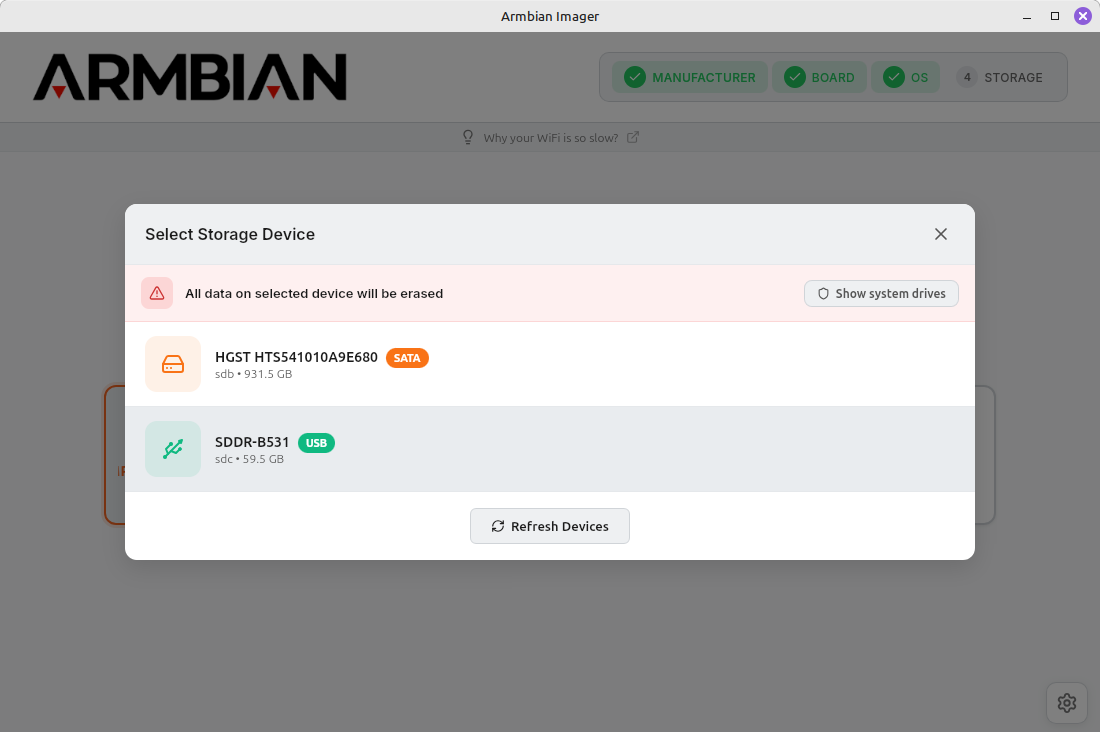
Select Storage:
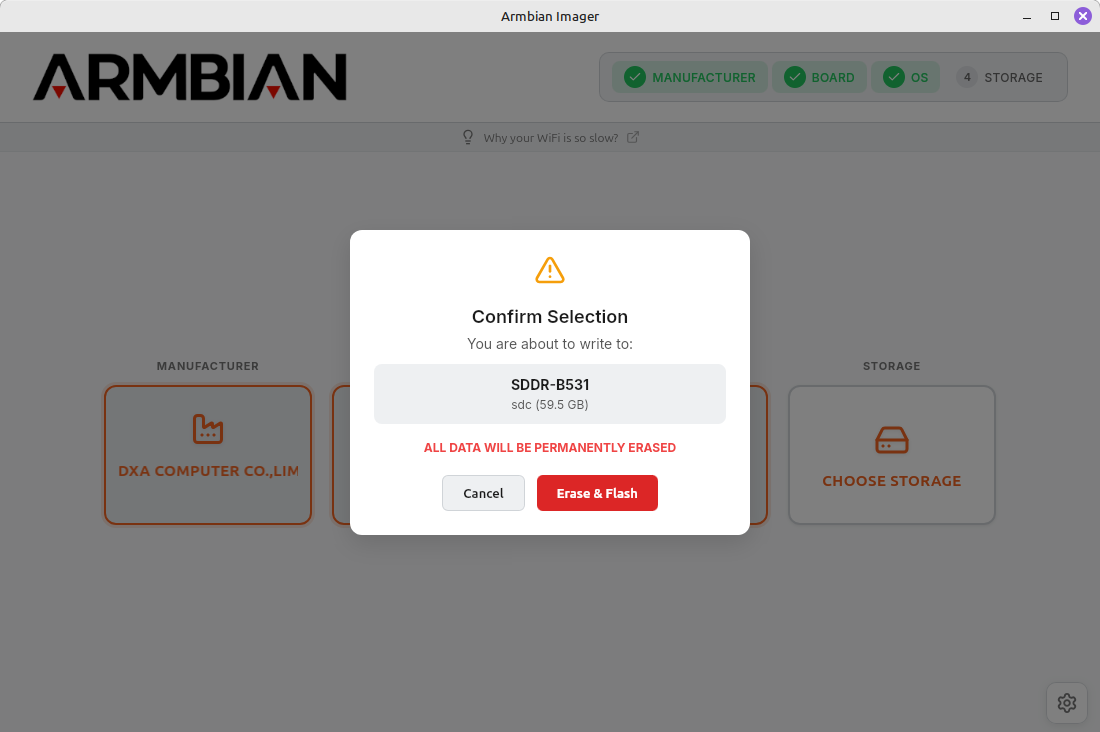
And click Erase & Flash:
Run from micrSD card
Insert the microSD card into the device, connect the monitor and keyboard. Switch on the power supply and after a few seconds you should see the system starting up.
We will be asked for a password and login details.
Login: root
Password: 1234
After entering them, we will need to change the root password and add a user.
By default, the ssh server is installed and running. So we can now log in remotely via the ssh console.
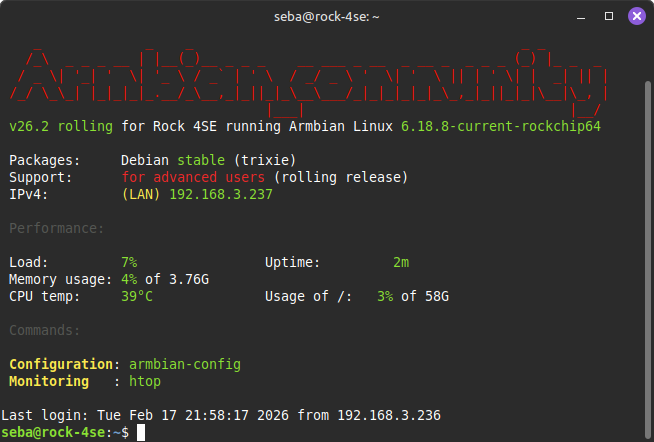
Upgrade Armbian:
sudo apt update
sudo apt upgrade -y
Update the boot loader:
sudo armbian-install
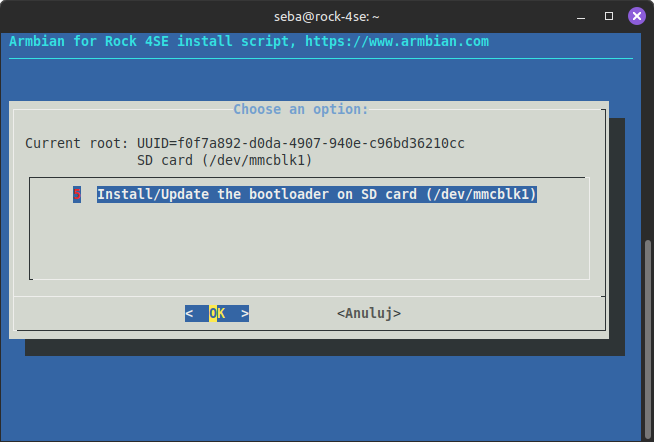
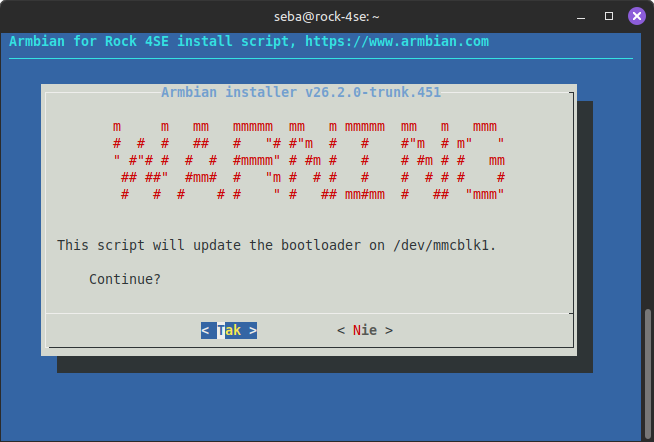
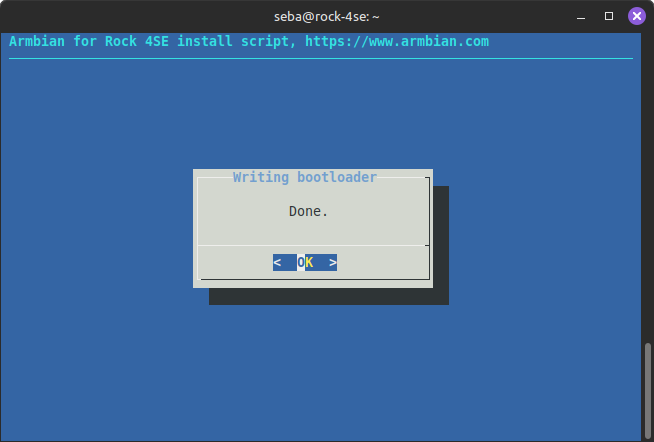
Move linux from miroSD on NVMe disk
Unfortunately, Radxa Rock 4 SE does not allow booting from an NVMe drive, nor does it have a factory-built SPI Flash or eMMC chip. Therefore, the bootloader must remain on the microSD card.
With the computer turned off, install the NVMe drive.
After starting, we check with a command whether the system sees the Nvme disk:
lsblk -f
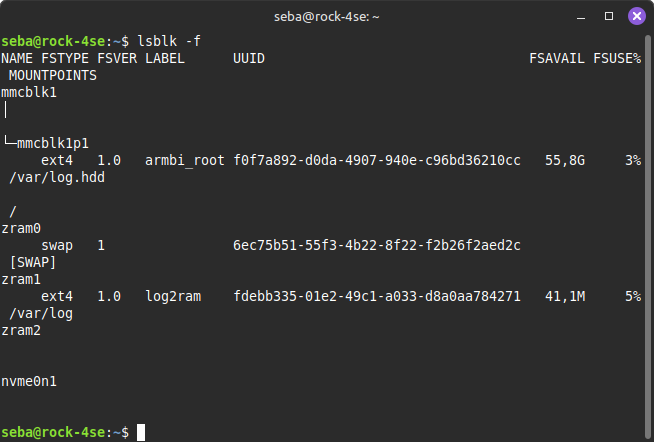
We should see something similar to nvme0n1 in the information displayed. If the disk has partitions, they will be additional visible.
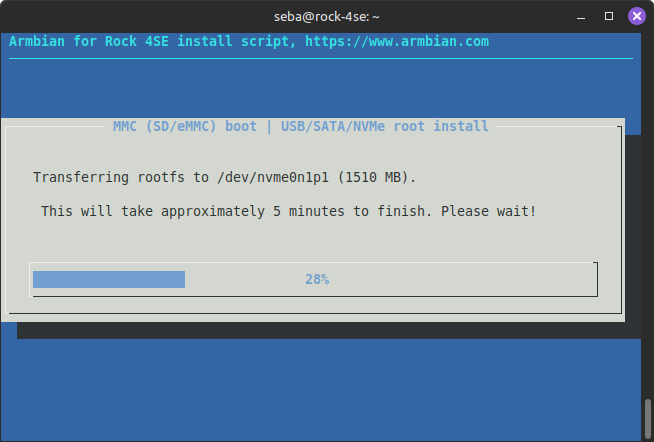
Launch tools that will transfer the system from microSD to NVme:
sudo armbian-install
Next, we choose:
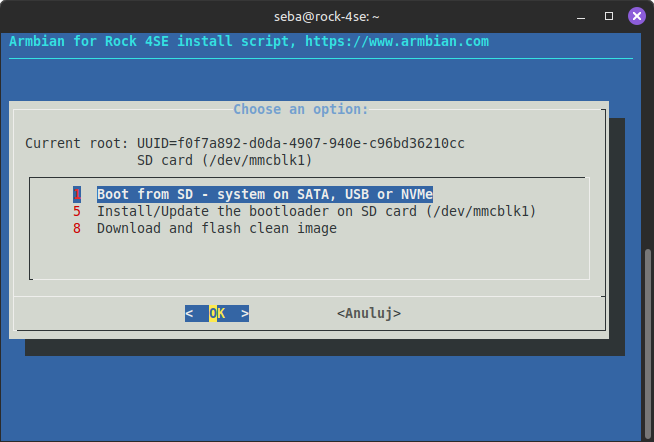
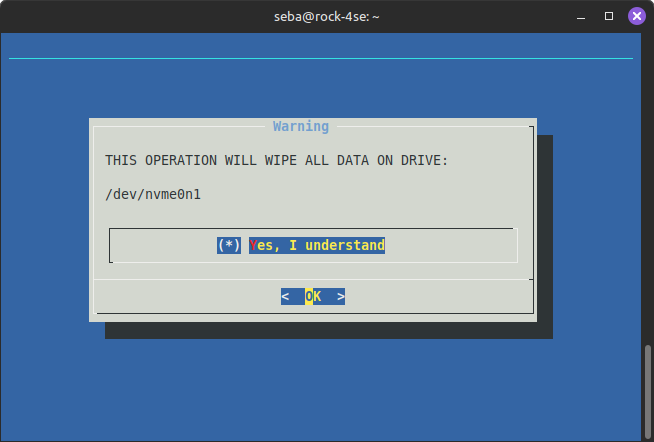
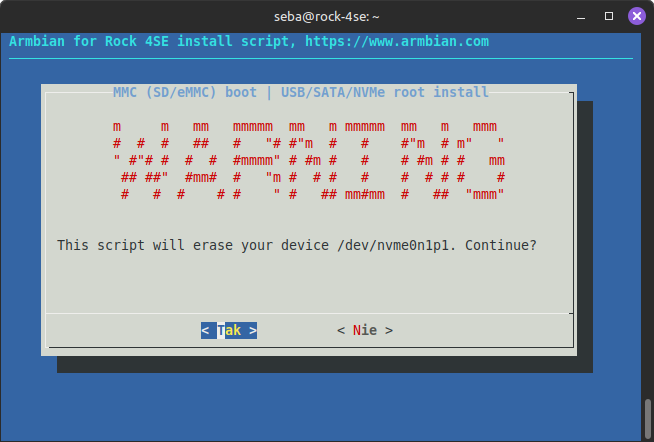
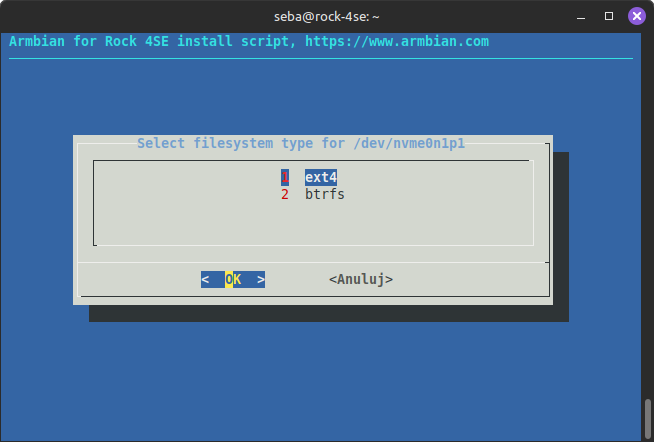
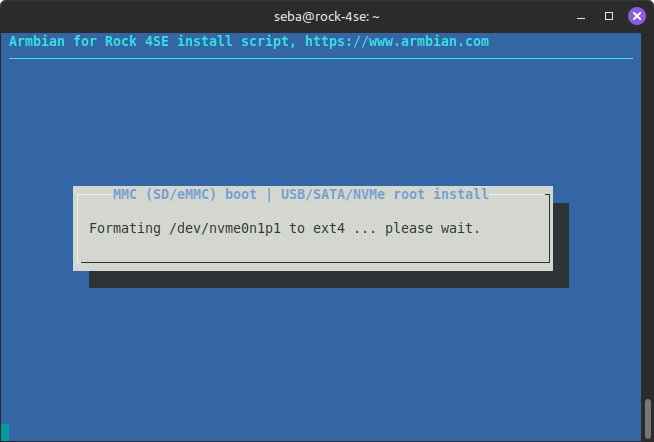
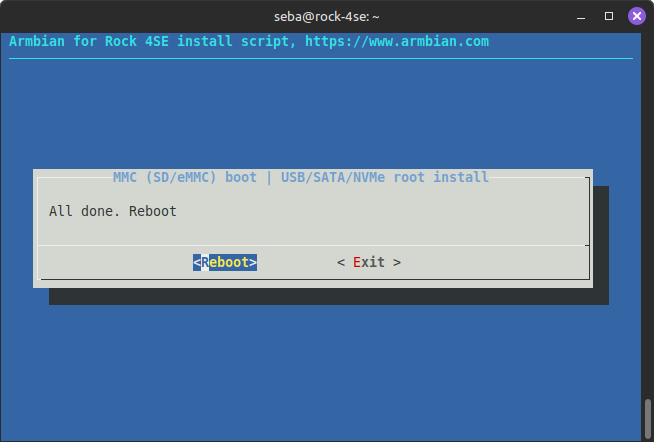
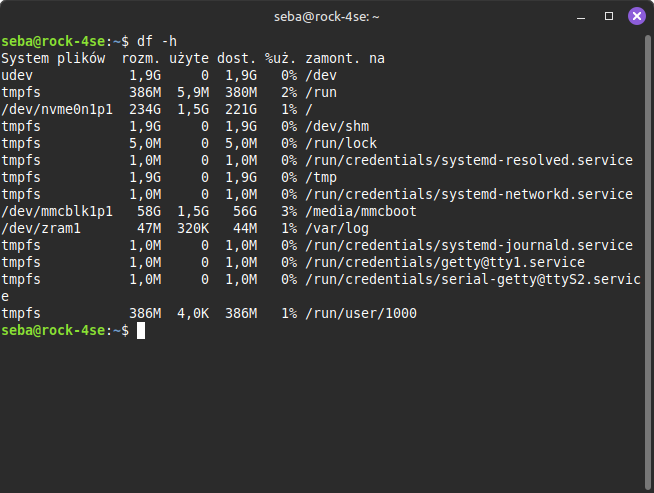
After restarting, check that the main partition / has been mounted under the NVMe drive:
df -h
Links
https://github.com/armbian/imager/releases
https://docs.armbian.com/User-Guide_Getting-Started/
https://docs.radxa.com/en/rock4/rock4ab-se/other-os/third-party-images